Image Brightener
Lighten dark photos, bring out shadow detail, and download the result at full resolution.
Adjustments
Free to use · No account needed
How to brighten an image
Choose your photo
Open a JPG, PNG, or WebP from your device, or drag it into the preview. Use the sample photo to try the controls first.
Adjust and compare
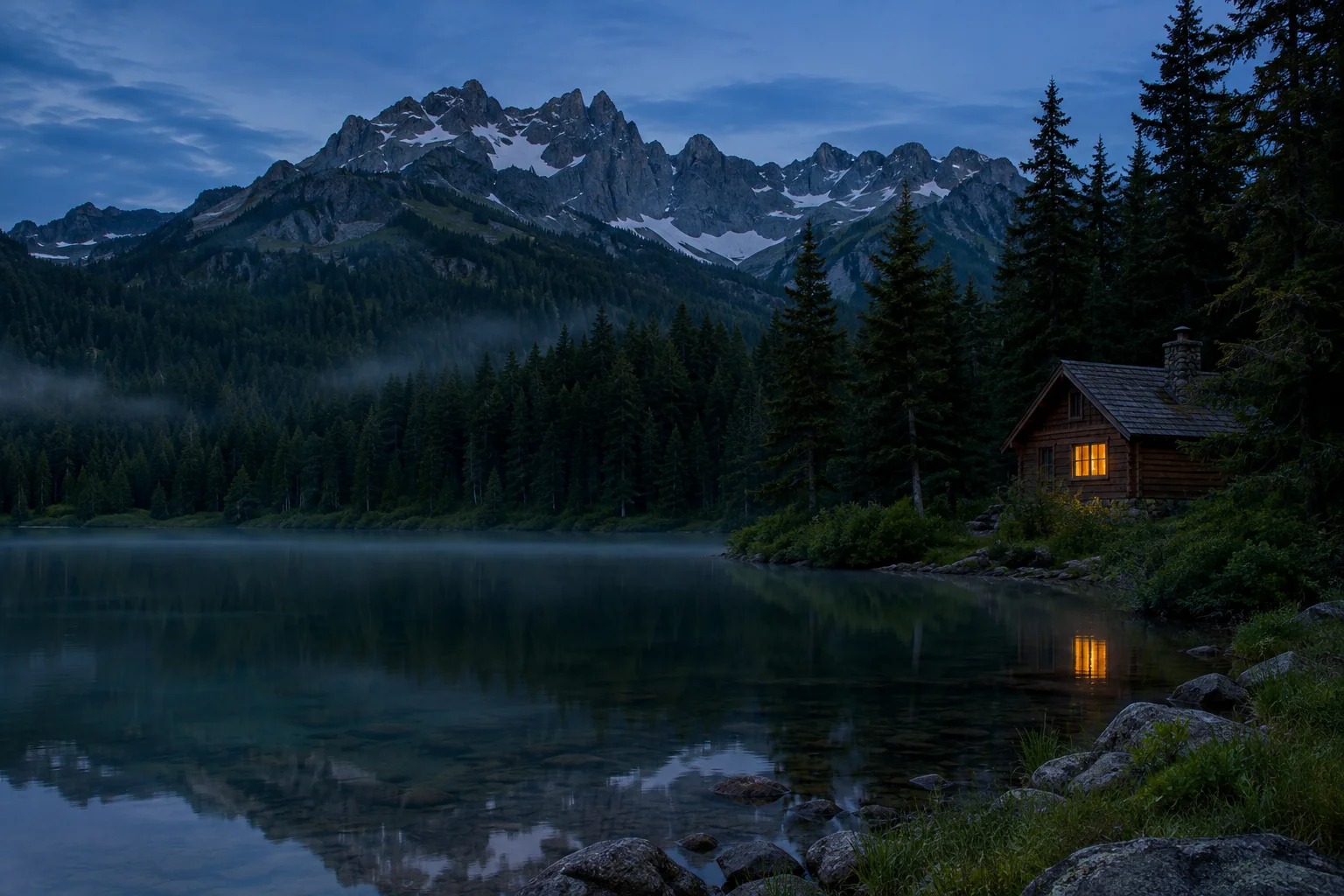
Raise Brightness until the subject is easier to see. Lift the Shadows if you need more detail in dark areas. Drag the divider to compare with the original.
Save the result
Pick a format and download a new file at the original width and height. The file you chose stays on your device throughout the edit.
How to fix a dark photo
Start with brightness on evenly dark photos
Raise Brightness a little at a time if the whole picture looks dim. It lifts the midtones, where you’ll usually find faces, fabric, and other details you want to see more clearly. Move the divider across your subject to judge whether the change is enough.
Open the shadows in backlit scenes
If a face is dark against a window or the foreground is dark under a bright sky, start with Shadows. It concentrates the lift in darker tones. Increase Protect highlights if the window, sky, or reflected light starts to look too bright. This control reduces the brightness lift in areas that are already bright.
Watch for noise in low-light photos
Large changes can make speckles, color variation, and compression blocks easier to see. If that happens, pull the sliders back and focus on the parts of the image that matter. Detail that the camera recorded as pure black or white can’t be recovered by adjusting brightness.
Choose an output format for the next step
Use JPG for sharing a photo. Pick PNG to keep transparency or save an image with crisp text. WebP also keeps transparency and works well for images intended for the web. JPG fills transparent areas with white.
Frequently asked questions
Can I brighten a photo for free?
Yes. Open one photo at a time, adjust it, and download the edited image for free. You can use the tool without an account or a watermark.
Does Image Brightener upload my photo?
The editor reads and processes the file in your web browser. It keeps the working image in memory while you edit and saves a copy only when you choose Download image.
Which image formats and sizes are supported?
Choose a still JPG, PNG, or WebP up to 20 MB, 16 megapixels, and 8,192 pixels on either side. You can download in JPG, PNG, or WebP. WebP export depends on browser support.
Will my image keep its original resolution?
Yes. Downloads use the full width and height of the image as displayed after the browser applies its orientation. JPG and WebP are compressed and can change fine detail. PNG uses lossless compression.
What’s the difference between Brightness and Shadows?
Brightness lifts midtones and other visible tones across the image. Shadows concentrates the lift in darker areas. On a backlit photo, Shadows often helps the subject stand out while the brighter background stays closer to the original.
How can I brighten a photo on my phone?
Open this page in a modern mobile browser, tap Choose image, and pick a photo. Adjust it with the sliders, then tap Download image. Your browser may put the file in Downloads or offer a save or share action.